Tech-Boy-Andy we talk about technology, mobiles, computers, hacking.

  • This is default featured slide 4 title

    Go to Blogger edit html and find these sentences.Now replace these sentences with your own descriptions.This theme is Bloggerized by NewBloggerThemes.com.

  • This is default featured slide 5 title

    Go to Blogger edit html and find these sentences.Now replace these sentences with your own descriptions.This theme is Bloggerized by NewBloggerThemes.com.

Showing posts with label howto. Show all posts

Hacking WPA/WPA2 without dictionary/bruteforce


Hacking WPA/WPA2 without dictionary/bruteforce


Fluxion (linset)

I hadn't ventured into Hackforums since a while, and this time when I went there I saw a thread about a script called Fluxion. It's based on another script called linset (actually it's no much different from linset, think of it as an improvement, with some bug fixes and additional options). I did once think about (and was asked in a comment about) using something like a man in the middle attack/ evil twin attack to get WPA password instead of going the bruteforce/dictionary route, but never looked the idea up on the internet nor spent much time pondering over it. However, once I saw the thread about this cool script, I decided to give it a try. So in this post I'll show you how I used Fluxion, and how you can too.
Disclaimer : Use this tool only on networks you own .Don't do anything illegal.

Contents

  • Checking if tool is pre-installed, getting it via github if it isn't.
  • Running the script, installing dependencies if required.
  • Quick overview of how to use Fluxion.
  • Detailed walk-through and demonstration with text explanation and screenshots
  • Video demonstration (not identical to the written demo, but almost the same)
  • Troubleshooting section


Just double checking

The first thing I did was make sure that Kali doesn't already have this tool. Maybe if you are reading this post a long time after it was written, then you might have the tool pre-installed in Kali. In any case, try this out:
fluxion
I, personally tried to check if linset or fluxion came pre-installed in Kali (though I didn't expect them to be there).

Getting the script

Getting the script is just a matter of cloning the github repository. Just use the git command line tool to do it.

If you have any problems with this step, then you can just naviagate to the repostitory and manually download the stuff.


Update : There seems to be some legal trouble with Fluxion. The creator of the script has removed the source code of the tool, and uploaded code that is supposed to delete fluxion from your computer. I don't know the specifics of what is going on, but will provide updates ASAP.
Update : Now the repository is gone altogether!
What this means : As of now, this tutorial is useless. If you can find the source code for Fluxion, then you can use it and continue with the tutorial. Otherwise, not much can be done without the tool.


Update Again!
You can try this repo - https://github.com/wi-fi-analyzer/fluxion. It's an old version, might or might not work.

git clone https://github.com/wi-fi-analyzer/fluxion

There are 4 dependencies that need to be installed

Running the script

Just navigate to the fluxion directory or the directory containing the scripts in case you downloaded them manually. If you are following the terminal commands I'm using, then it's just a simple change directory command for you:
cd fluxion
Now, run the script.
sudo ./fluxion


Dependencies

If you have any unmet dependencies, then  run the installer script.
sudo ./Installer.sh
I had 4 unmet dependencies, and the installer script run was a buggy experience for me (though it might be becuase I have completely screwed up my system, editing files I wasn't supposed to and now I can't get them back in order) .It got stuck multiple times during the process, and I had to ctrl+c my way out of it many times (though ctrl+c didn't terminate the whole installer, just the little update popup). Also, I ran the installer script twice and that messed up with some of the apt-get settings. I suggest that after installation is complete, you restore your /etc/apt/sources.list to it's original state, and remove the bleeding edge repositories (unless you know what you're doing). To know what your repository should look like, take a look here.


Anyways, one way or the other, your unmet dependencies will be resolved, and then you can use Flexion.
PS: For those trying to use apt-get to install the missing stuff - some of the dependencies aren't available in the default Kali repos, so you'll have to let the script do the installation for you, or manually add the repos to /etc/apt/sources.list (look at the script to find out which repos you need to add)


Fluxion

Once again, type the following:
sudo ./fluxion


This time it should run just fine, and you would be asked a few very simple questions.
  • For the wireless adapter, choose whichever one you want to monitor on. For the channels question, choose all, unless you have a specific channel in mind, which you know has the target AP.
  • Then you will see an airodump-ng window (named Wifi Monitor). Let it run while it looks for APs and clients. Once you think you have what you need, use the close button to stop the monitoring.
  • Fluxion using airodump-ng
  • You'll then be prompted to select target.
  • Then you'll be prompted to select attack.
  • Then you'll be prompted to provide handshake.
  • If you don't have a handshake captured already, the script will help you capture one. It will send deauth packets to achieve that.
  • After that, I quit the procedure (I was using the script in my college hostel and didn't want to cause any troubles to other students).

If you are with me so far, then you can either just close this website, and try to use the tool on your own (it look intuitive enough to me), or you can read through the test run that I'm going to be doing now.

Getting my wireless network's password by fooling my smartphone into connecting to a fake AP

So, in this example run, I will try to find out the password of my wireless network by making my smartphone connect to a fake AP, and then type out the password in the smartphone, and then see if my Fluxion instance on my Kali machine (laptop) gets the password. Also, for the handshake, I will de-authenticate the same smartphone.
PS: You can probably follow this guide without having any clue how WPA works, what handshake is, what is actually going on, etc., but I suggest you do read up about these things. Here are a few links to other tutorials on this website itself that would prove useful (the first two are theoretical, yet nice, the third one is a pretty fun attack, which I suggest you try out, now or later):
  1. Things you should know about Wireless Hacking - Beginner Level Stuff
  2. Things you should know about Wireless Hacking Part II - Intermediate Level Stuff
  3. Evil Twin Attack
This is the theoretical stuff. Experience with tools like aircrack-ng, etc. would also be useful. Take a look at the navigation bar at the top and look at the various tutorials under the "Wireless Hacking" category.
Anyways, with the recommended reading material covered, you can comfortably move on to the actual hacking now:

The real stuff begins!

This section is going to be a set of pictures with captions below them explaining stuff. It should be easy to follow I hope.
Select language
After selecting language, this step shows up.
Note how I am not using any external wireless card, but my laptop's internal card.
However, some internal cards may cause problems, so it's better to use an
external card (and if you are on a virtual machine you will have to use an external card).

The scanning process starts, using airodump-ng.

You get to choose a target. I'm going after network number 21, the one my smartphone
is connected to.

You choose an attack. I am going to choose the Hostapd (first one) attack.

If you had already captured a 4-way handshake, then you can specify the location
to that handshake and the script will use it. Otherwise, it will capture a handshake
in the next step for you. (A tutorial on capturing the handshake separately)
If you didn't capture a handshake beforehand, then you get to choose which
tool to use to do that. I'm go with aircrack-ng.

Once you have a handshake captured (see the WPA Handshake: [MAC Address] on top, if it's
there, then you have the handhake), then type 1 and enter to check the handshake. If everything's fine,
you'll go to the next step.

Use the Web Interface method. I didn't try the bruteforce thing, but I guess it's just
the usual bruteforce attack that most tools use (and thus no use to us, since that's
not what we are using this script for).

This offers a variety of login pages that you can use to get (phish) the
WPA network's password. I went with the first choice.

After making your decision, you'll see multiple windows. DHCP and DNS requests are being handled in
left two windows, while the right two are status reporting window and deauth window (to get users
off the actual AP and lure them to our fake AP)

In my smartphone, I see two network of the same name. Note that while the original network is WPA-2
protected, the fake AP we have created is an open network (which is a huge giveaway stopping most people
from making the mistake of connecting to it). Anyways, I connected to the fake AP, and the DNS and DHCP windows
(left ones), reacted accordingly.
After connecting to the network, I got a notification saying that I need to login to the wireless network.
On clicking that, I found this page. For some people, you'll have to open your browser and try to open a website (say facebook.com) to get this page to show up. After I entered the password, and pressed submit, the script ran the
password against the handshake we had captured earlier to verify if it is indeed correct. Note how the
handshake is a luxury, not a necessity in this method. It just ensures that we can verify if the password
submitted by the fake AP client is correct or not. If we don't have the handshake, then we lose this ability,
but assuming the client will type the correct password, we can still make the attack work.

Aircrack-ng tried the password again the handshake, and as expected, it worked.
We successfully obtained the password to a WPA-2 protected network in a matter of minutes.


If you like the post please share it ... :)
Share:

how to download youtube videos in mp3 #fast and #free online

how to download youtube videos in mp3 #fast and #free online


www.onlinevideoconverter.com is the easiest online service for converting videos to mp3. You do not need an account, the only thing you need is a YouTube URL. We will start to convert the audiotrack of your videofile to mp3 as soon as you have submitted it and you will be able to download it. Different from other services the whole conversion process will be perfomed by our infrastructure and you only have to download the audio file from our servers. Because of this our software is platform-independent: You can use it with your Mac, a Linux PC or even an iPhone. All our conversions will be perfomed in high quality mode with a bitrate of at least 128 kBit/s. Do not worry, our service is completely free. We need approximately 3 to 4 minutes per video.

watch an video to understand better.

INSTRUCTIONS

  1. Copy and paste the video link that you want to convert.
  2. Select ".mp3" in the format field.
  3. Click the "Start" button to initiate the conversion.
  4. When the conversion is done, download the file from the link provided.


If you like the post please share it ... :)
Share:

Download Youtube videos in HD without any Software

How To Download Youtube videos in HD without any Software 


SaveFrom.net YouTube Download Guide 


YouTube, a subsidiary of Google, is now the largest video-sharing website where you can enjoy any general videos, TV show clips, music videos and movie videos at will. Users are allowed to upload, view and share videos, but not to download video directly. This is where YouTube Download Software lies in. Generally, people are inclined to utilize some online YouTube download service or install YouTube download Add-ons like SaveFrom.net YouTube Downloader helper.
SaveFrom.net, one of those marked online YouTube download service providers, is best known for its online YouTube downloader. Here we will show you 3 ways to fast free download any YouTube videos,

Ways to Use SaveFrom.net YouTube Downloader

[1st Way]: Enter the YouTube video URL you want to download into the Address Bar of SaveFrom.net webpage, click "Download" button to analyze the video information, then choose a certain format/resolution video to download;
[2nd Way]: Install SaveFrom.net helper from its website and then go to YouTube.com, download any video by clicking the "Download" button and choosing one available format (Often MP4 and FLV formats video).
Attention! It's only workable on Windows XP/Vista/7/8 systems.

[3rd Way]: Directly add certain letters in the YouTube video URL, then press Enter to the video downloading webpage. Here just take "Sia Chandelier"'s official YouTube URL for example: https://www.youtube.com/watch?v=2vjPBrBU-TM (Original URL address)
* Add "ss" before "youtube": https://www.ssyoutube.com/watch?v=2vjPBrBU-TM
* Add "sfrom.net/" before URL: sfrom.net/https://www.youtube.com/watch?......
* Add "savefrom.net/" before URL: savefrom.net/https://www.youtube.com/watch?......


If you like the post please share it ... :)
Share:

How To Increase Your battery life using simple apps


How To Increase Your battery life using 

simple apps


Many Android phone users would be happy to make it through a single day, hoping that a nightly recharge is sufficient.
Sadly, it sometimes isn't. A number of factors have conspired to reduce gadget endurance over the past several years. Thinner designs with less room for batteries, larger and brighter screens, faster quad-core processors, more software that runs in the background, and power-hungry GPS radios all share responsibility. The move from 3G to 4G networks a few years ago—particularly of the LTE variety—has also taken its toll.
But there's much more to poor battery life results than that. Fortunately, there's plenty you can do to stem the flow of juice from your Android device.

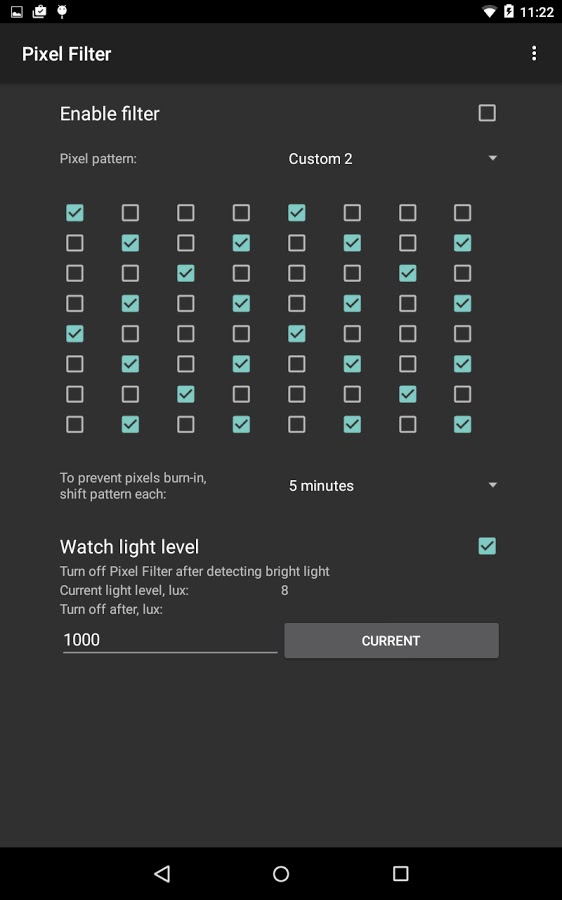
Pixel Filter


This app Decrease screen brightness below minimum level, by turning off individual pixels. This way the screen contrast is kept at the same level.
Save battery on newer AMOLED screens - they will turn off black pixels completely. Especially good for 4K screens - disable all those pixels you don't need!
Includes screen pattern editor and light sensor support for turning filter off automatically.
Screen pattern is shifted each 5 minutes to prevent uneven pixel wearout.

App sources available here: https://github.com/pelya/screen-dimmer-pixel-filter
Previous version with configurable notification available here:
https://github.com/pelya/screen-dimmer-pixel-filter/blob/4aab45abf4de13efd2d1a04a088ca743ff766f3c/PixelFilter.apk?raw=true

Greenify


Never should your phone or tablet become slower and battery hungrier after lots of apps installed. With Greenify, your device can run almost as smoothly and lastingly as it did the first day you had it!
Greenify help you identify and put the misbehaving apps into hibernation when you are not using them, to stop them from lagging your device and leeching the battery, in a unique way! They can do nothing without explicit launch by you or other apps, while still preserving full functionality when running in foreground, similar to iOS apps!

Hibernation Manager


Android devices are designed to work all the time, even when you do not use them! Hibernation Manager helps you to save battery when you do not use your device. When the screen goes off, it hibernates your processor (CPU), settings and even applications to save your battery power.
CPU hibernation (for root users)
CPU hibernation automatically sets CPU (processor) to the lowest possible frequency and voltage which ensures huge battery savings.
CPU “The brain of your device” constantly computes many demanding tasks. For example: updating widgets, checking for software updates etc. This computing power drains a lot of battery and is used when you do not need it. That is why CPU frequency needs to be lowered when the screen is OFF.
Settings hibernation
Choose which settings will be automatically disabled (hibernated) when your screen is OFF and enabled when your screen is ON.
If you hate frequently changing your settings or you just want to save more battery, this option is suitable for you. It is better to have enabled hibernation for all settings, because this mode will automatically hibernate only currently active settings.
You can apply settings hibernation to: wifi, mobile data (APN), bluetooth (BT)
Applications hibernation
Choose which battery-draining apps will be disabled (hibernated) when the screen is OFF.
Some of your installed apps are constantly performing some battery-draining tasks in background. For example: social app updates your status and checks for the new messages. If you hibernate this app, it stops all tasks running in background (services) which causes extreme battery savings. The hibernation is more effective than task killer or any other memory cleaner.
Battery Widget
Battery widget allows you to control Hibernation Manager right from your home screen.
Warning: If you have problems with some of hibernated apps, disable particular hibernation and restart particular app.

Some more tips
See what's sucking the most juice. Navigate to Settings > Battery to see an organized breakdown of what's consuming your phone's battery. Applications and features will display in a descending list of battery hogs. If you see an application you barely use or a feature you never use, you'll want to uninstall the app or turn off the feature.

Reduce email, Twitter, and Facebook polling. Set your various messaging apps to "manual" for the polling or refresh frequency, just as a test, and you'll instantly extend your device's battery life by a significant amount. Once you see what a difference that makes, try re-enabling just the most important ones, and possibly reducing their polling frequency in the process.

Turn unnecessary hardware radios off. It's great that today's phones have LTE, NFC, GPS, Wi-Fi, and Bluetooth, but do you really need all five activated 24 hours per day? Android keeps location-based apps resident in the background, and the constant drain on your battery will become noticeable, fast. If your phone has a power control widget, you can use it to quickly turn on/off GPS (the largest power drain), NFC, Wi-Fi, Bluetooth, and LTE. On stock Android, swipe down to bring up the Notification bar, and then tap the icon on the top right corner.

If you like the post please share it ... :)
Share:

#Speed_hack Improve Your Android Device Speed Just In 5 Min

#Speed_hack  Improve Your Android Device Speed Just In 5 Min


Android devices have a tendency of getting old. And not only in the physical way, prolonged usage can also take a toll on performance, making it seem like you need to upgrade your phone sooner than you thought. What gives? Well, you may be able to save your smartphone by performing a few tricks that can push your handset forward, possibly making it as snappy as the first day you turned it on.
Keep reading to get your device up to speed!

Delete and disable unnecessary apps


Like me, you probably have way too many apps on your smartphone. We all download applications without even thinking about it. After some testing we realize they are no good, and it’s normal to simply forget about these applications and leave them roaming around the app drawer.
This is fine when you have a lot of storage, but some may need to save that precious space. Not to mention, this software may be running in the background at times. Unused apps are definitely resource hogs, so just get rid of them! You can do this by using the app manager in your settings, or by long-pressing apps in your drawer and dragging them to the “Uninstall” section.

Clear the cache data


Don’t know what cached data is? Well, it’s a good thing to have it, as it actually speeds up your device. By saving some data locally, the system can reduce loading times and avoid the need to grab the same bits from the Internet every single time you enter a website or app.
The issue is that cache can build up and become pretty heavy on your smartphone’s internal storage. Try to clear it from time to time, as it can also get old. The option is available for individual apps through the app manager, or you can look for a cache cleaning application in the Google Play Store.

Clean your device storage


Got too much music, videos and other files around? Filling up your internal storage can affect performance, so try to keep your phone memory as tidy as possible. Go through all your files and decide what you will actually use and what is just taking up space for no good reason.

Get rid of widgets!


Widgets are very cool, but they can be huge resource hogs and slow down your device. These windows of information are constantly fetching data and looking for updates. Try to limit your widget usage as much as possible. Of course, don’t sacrifice your whole experience either; after all, widgets are among of the coolest things the Android OS offers. Just keep it limited to what you will actually take advantage of.

Dump the live wallpaper

And here’s another awesome Android feature that is not exactly the best at keeping your smartphone clean and smooth. Live wallpapers sure are fun, but they affect performance and battery life. Unless you are willing to sacrifice a bit for those fancy animations, just go grab a regular image.

Keep your phone’s software up to date


Have you been putting off installing that update that keeps nagging you in the notification area? Remember software updates are not always about new features. In fact, most times the main purpose of these OTA upgrades is to squash bugs and introduce performance enhancements. Make sure your phone’s software is always on the latest version available.

Rooting?

If you really want to go nuts and unlock the door to a whole other series of possibilities, you can root your phone. Once you get total access to your device you can install cleaner ROMs that will keep your phone running smoother. It’s even possible to overclock the processor and make it work extra hard for you, hence making the phone faster.
Just keep in mind these methods are not for the faint of heart. Rooting your phone can be a complicated process, and it can void your warranty. Not to mention the fact that you can often deem your device unusable if you fail to do things right. Want to follow this path? Be very careful, follow instructions, and do your homework first.

Perform a factory data reset!

Phones get old, but that isn’t exactly why they get slower with time. A lot goes on within your handset’s software, so giving it a clean start from time to time is never a bad idea. Sometimes even trying all the previous tips will get you nowhere. In which case the best bet would be to just go ahead and do a factory data reset.
What is a factory data reset? It’s pretty much a method in which you wipe your phone clean and leave the software just the way it was the first time you turned the phone on. Keep in mind this will delete everything in your phone, so back up any important files first!
The option is in your phone’s settings under “Backup and reset”. There’s also ways to do a factory reset using the recovery menu, but the steps are different for every phone. Google is your friend!
Android

Wrapping up

Now, if none of this works, it might be time to get yourself a new device! Let us refer you to our “Best Android phones” article, where we tell you which are the most awesome handsets around. These are all super high-end, so you know you won’t be getting any slowdowns.
Hit the comments and let us know which of these are the most effective tricks for you. Do you know of any other ways to make your phone faster?


If you like the post please share it ... :)
Share:

Comment

Labels

Recent Posts

Unordered List

  • Lorem ipsum dolor sit amet, consectetuer adipiscing elit.
  • Aliquam tincidunt mauris eu risus.
  • Vestibulum auctor dapibus neque.

Sample Text

Lorem ipsum dolor sit amet, consectetur adipisicing elit, sed do eiusmod tempor incididunt ut labore et dolore magna aliqua.

Ut enim ad minim veniam, quis nostrud exercitation test link ullamco laboris nisi ut aliquip ex ea commodo consequat.